Every Windrose dedicated server guide on the internet tells you the same thing: "Windrose uses P2P relay and invite codes. You cannot use direct IP connections." As of the latest Windrose build (0.10.0.3), that is no longer true. The developers added a direct connection mode that lets players connect to your server using a traditional IP and port instead of invite codes.
This guide explains how to enable it using the DirectConnectionServerPort setting in ServerDescription.json, why you would want to, and how to configure your network for it.
Why Direct Connection Matters
Windrose's default networking uses Epic Online Services (EOS) as a relay layer. When a player enters an invite code, the game contacts EOS, which coordinates a NAT punch-through between the client and server. If punch-through fails, traffic falls back to a full relay hop through AWS infrastructure.
This works for most home setups, but it has real downsides for dedicated server hosting:
Latency penalty. The relay adds measurable ping. One server admin reported their ping dropped from 180ms to 18ms after switching to direct connection on the same hardware.
Relay instability. Windrose's P2P relay runs through AWS, and relay selection does not always pick the closest node. Players report mid-session disconnects when the relay renegotiates.
DNS blocking. Some DNS providers block the windrose.support domain by default, which silently kills relay connections.
For anyone running a hosted dedicated server with a public IP (which is exactly what we at HypeServ offer), direct connection eliminates the relay entirely and gives players the best possible latency.
Prerequisites
Before you begin:
You need Windrose Dedicated Server build 0.10.0.3 or later. This feature does not exist in earlier builds.
A public IP address or proper port forwarding. Direct connection requires that clients can reach your server's IP and port directly. This is standard for any hosted dedicated server or VPS.
Port access on both TCP and UDP. Unlike P2P mode (which only uses UDP), direct connection mode opens sockets on both TCP and UDP on the configured port.
Step 1: Stop Your Server
Always stop the Windrose server before editing ServerDescription.json. The server rewrites this file on shutdown, so any changes made while it is running will be overwritten.
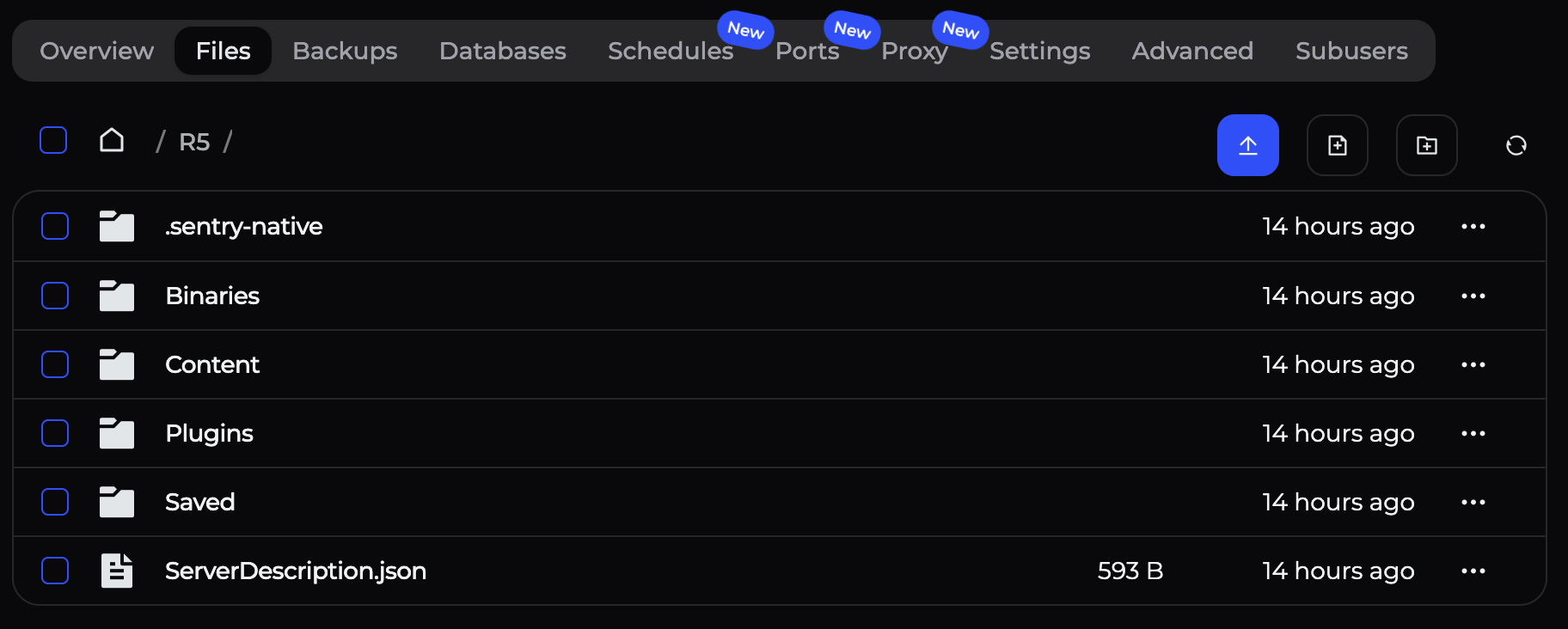
Step 2: Locate ServerDescription.json
The file is located in the root directory of your Windrose Dedicated Server installation:
<server root>/ServerDescription.jsonIf you installed via SteamCMD to C:\WindroseServer, the path would be:
C:\WindroseServer\ServerDescription.jsonOn a managed hosting panel (Pterodactyl, etc.), look for ServerDescription.json under File Manager.
Step 3: Enable Direct Connection
Open ServerDescription.json in a text editor. With the latest build, the file should contain the following structure under ServerDescription_Persistent:
{
   "Version":1,
   "DeploymentId":"0.10.0.3.104-256f9653",
   "ServerDescription_Persistent":{
      "PersistentServerId":"YOUR_SERVER_ID",
      "InviteCode":"your_code",
      "IsPasswordProtected":false,
      "Password":"",
      "ServerName":"My Windrose Server",
      "WorldIslandId":"YOUR_WORLD_ID",
      "MaxPlayerCount":8,
      "UserSelectedRegion":"",
      "P2pProxyAddress":"127.0.0.1",
      "UseDirectConnection":false,
      "DirectConnectionServerAddress":"",
      "DirectConnectionServerPort":7777,
      "DirectConnectionProxyAddress":"0.0.0.0"
   }
}
The four fields you need to configure are all inside ServerDescription_Persistent:
UseDirectConnection
Set this to true to enable direct connection mode and disable the P2P relay:
"UseDirectConnection": trueWhen enabled, players will connect via IP and port instead of invite codes.
DirectConnectionServerPort
This is the port the server listens on for player connections. The default is 7777:
"DirectConnectionServerPort": 7777This port must be accessible from the internet (or your LAN, for local play). Unlike P2P mode where ports are dynamic, this is a fixed, predictable port.
If you are running multiple Windrose server instances on the same machine, assign each instance a different port (e.g., 7777, 7779, 7781).
DirectConnectionServerAddress
Set this to the public IP address or hostname that players will use to connect:
"DirectConnectionServerAddress": "203.0.113.50"For a hosted server or VPS, this is your server's public IP. For self-hosting behind a router with port forwarding, use your external (WAN) IP address. You can find this at whatismyip.com. If you leave this as an empty string (""), the server will attempt to use its own detected address.
DirectConnectionProxyAddress
This is the local bind address -- the IP the server binds its listening socket to. The default 0.0.0.0 means "listen on all network interfaces," which is correct for most setups:
"DirectConnectionProxyAddress": "0.0.0.0"Only change this if you need to bind to a specific network interface (e.g., in a multi-NIC server environment).
Step 4: Complete Configuration Example
Here is a complete ServerDescription.json configured for direct connection on port 7777:
{
   "Version":1,
   "DeploymentId":"0.10.0.3.104-256f9653",
   "ServerDescription_Persistent":{
      "PersistentServerId":"1B80182E460F...",
      "InviteCode":"",
      "IsPasswordProtected":true,
      "Password":"your_server_password",
      "ServerName":"My Windrose Server",
      "WorldIslandId":"DB57768A...",
      "MaxPlayerCount":8,
      "UserSelectedRegion":"",
      "P2pProxyAddress":"127.0.0.1",
      "UseDirectConnection":true,
      "DirectConnectionServerAddress":"203.0.113.50",
      "DirectConnectionServerPort":7777,
      "DirectConnectionProxyAddress":"0.0.0.0"
   }
}
Important: Do not edit PersistentServerId or WorldIslandId unless you know what you are doing. Changing these can orphan your save data.
Step 5: Configure Your Firewall
In direct connection mode, the Windrose server listens on both TCP and UDP on your configured port. This is different from P2P mode, which only uses UDP.
Windows Firewall
Open Windows Defender Firewall with Advanced Security and create two inbound rules:
Rule 1 --TCP:
Rule Type: Port
Protocol: TCP
Port: 7777 (or your configured DirectConnectionServerPort)
Action: Allow the connection
Profile: Select all applicable profiles (Domain, Private, Public)
Name: "Windrose Direct Connection TCP"
Rule 2 - UDP:
Rule Type: Port
Protocol: UDP
Port: 7777 (or your configured DirectConnectionServerPort)
Action: Allow the connection
Profile: Select all applicable profiles
Name: "Windrose Direct Connection UDP"
Linux (iptables)
sudo iptables -A INPUT -p tcp --dport 7777 -j ACCEPT sudo iptables -A INPUT -p udp --dport 7777 -j ACCEPT sudo netfilter-persistent saveOr with ufw:
sudo ufw allow 7777/tcp sudo ufw allow 7777/udpRouter Port Forwarding (Self-Hosting Only)
If you are self-hosting behind a home router:
Find your server's LAN IP (run ipconfig on Windows or ip addr on Linux)
Log into your router's admin panel (usually 192.168.1.1 or 192.168.0.1)
Navigate to Port Forwarding (sometimes called "Virtual Servers" or "NAT")
Add a rule: TCP+UDP 7777 --> your_server_LAN_IP:7777
Save and reboot the router
This is not needed if your server has a direct public IP (VPS, dedicated server, or managed hosting).
Step 6: Start the Server and Connect
Launch the server using StartServerForeground.bat (Windows) or your hosting panel's start button.
Watch the console output to confirm the server starts without errors.
Players connect by entering your server's IP and port in the game's Play --> Connect to Server screen, using the IP and Port you set in your server config
No invite code is needed. Players enter the IP:port directly.
Troubleshooting
Players cannot connect via IP:port
Verify the server is running and fully initialized (check the console for errors).
Confirm UseDirectConnection is set to true in ServerDescription.json.
Make sure you edited the file while the server was stopped. The server overwrites this file on shutdown.
Test that your port is reachable from the internet using a tool like canyouseeme.org -- test both TCP and UDP on your configured port.
Check that your firewall allows both TCP and UDP on the port (not just UDP, which is the common mistake when coming from P2P mode).
Server starts but falls back to P2P
Make sure you are on build 0.10.0.3 or later. The UseDirectConnection field does not exist in earlier builds.
If the field is missing from your ServerDescription.json, update the server via SteamCMD (app_update 4129620 validate), start and stop it once to regenerate the config, then edit the new file.
High ping despite direct connection
Verify that traffic is actually going direct. If you still see relay-level latency (~100ms+), the direct connection may not be active. Re-check the config file after a server restart to make sure your changes were not overwritten.
On Linux under Wine, ensure the Wine network stack is not interfering. The CPU must support AVX2 for the server to run correctly.
Running multiple Windrose instances on one machine
Assign each instance a unique DirectConnectionServerPort. For example:
Instance 1: "DirectConnectionServerPort": 7777
Instance 2: "DirectConnectionServerPort": 7779
Instance 3: "DirectConnectionServerPort": 7781
Create firewall rules for each port.
Summary
Windrose's new direct connection mode is a significant improvement for anyone running a dedicated server with a public IP. By setting UseDirectConnection to true and configuring DirectConnectionServerPort in ServerDescription.json, you bypass the EOS relay entirely, giving your players dramatically lower latency and more stable connections. For managed hosting providers and VPS setups, this should be the default configuration (and for HypeServ it obviously is :p).
The feature was added in build 0.10.0.3 (April 2026) and is not yet documented in the official Windrose server guide, which still describes only the P2P/invite code method.


 Product